Using Sheeta AI
Workspace
The Sheeta AI window has three columns: the left sidebar, the main workspace in the middle and the agent panel on the right. A terminal can open below the workspace. Drag the borders between areas to resize them.
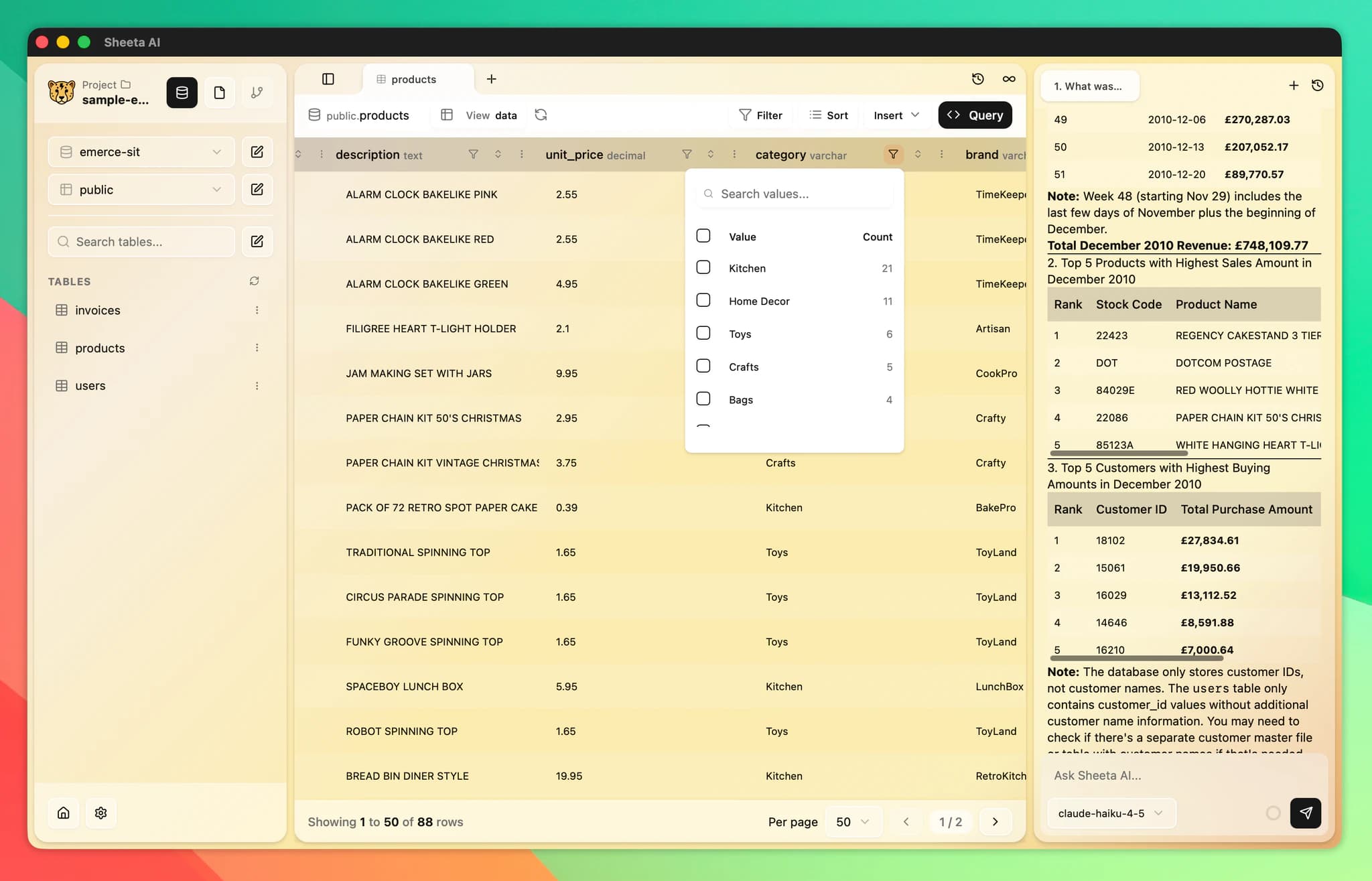
Left sidebar
The top of the sidebar shows the project name. Click it to switch to a recent project, open another folder or clone a Git repository. Next to it, the Select mode button switches the sidebar between three modes:
- Database (Cmd+Opt+1 / Ctrl+Alt+1): connections, schemas and tables. See Data Explorer.
- File (Cmd+Opt+2 / Ctrl+Alt+2): the File Explorer and Version Control tabs. See File Editor and Version Control.
- Dashboard (Cmd+Opt+3 / Ctrl+Alt+3): the dashboards in the project. See Dashboards.
The Settings button sits at the bottom of the sidebar. Press Cmd+B / Ctrl+B to hide or show the sidebar.
Tabs
Tables, query tabs, files, dashboards and Git diffs all open as tabs in the main workspace. One tab is shown at a time.
- Press Cmd+T / Ctrl+T for a new query tab and Cmd+W / Ctrl+W to close the current tab.
- Drag a tab left or right to reorder it.
- Right-click a tab for Close, Close Others, Close to the Right and Close to the Left.
- A dot after a tab name means it has unsaved changes.
Query tabs and SQL files show the editor on top and the results below. Drag the border between them to change their height.
Terminal
Press Cmd+J / Ctrl+J, or click the Terminal button in the tab bar, to open a terminal below the workspace. It runs your system's default shell and keeps running while hidden.
- Press Cmd+N / Ctrl+N in the terminal for a new terminal tab. Double-click a terminal tab to rename it.
- Press Cmd+K / Ctrl+K to clear the terminal.
- Press Cmd+=, Cmd+- and Cmd+0 (or the Ctrl versions) to change or reset the terminal font size.
- Closing a tab with a running process asks you to confirm with Force Quit.
Terminal tabs are not restored when you restart the app.
Agent panel
Press Cmd+I / Ctrl+I, or click AI Assistant in the tab bar, to open the agent panel on the right. See AI Agent.
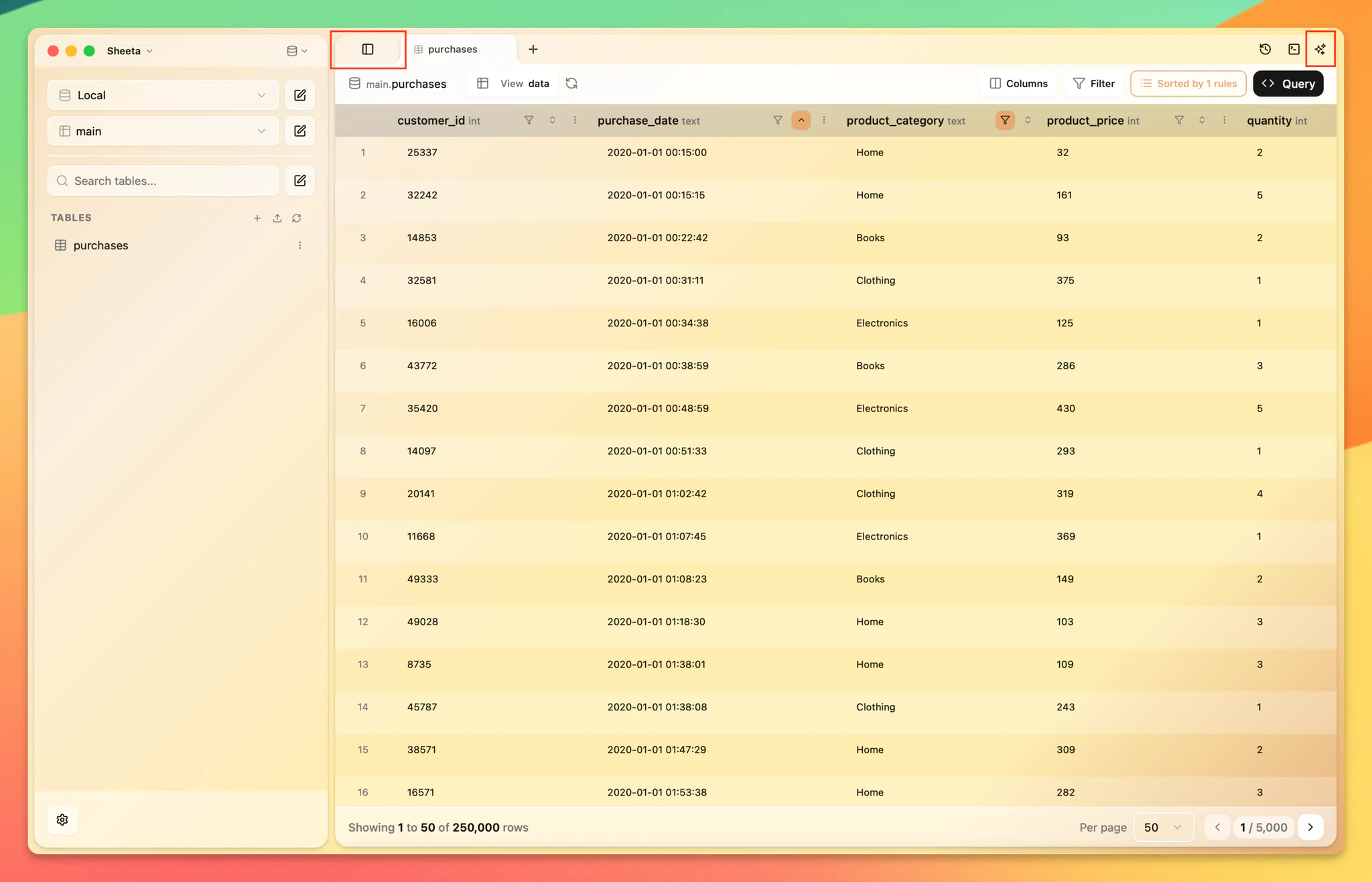
Quick open
Press Cmd+P / Ctrl+P to search tables and files in the project and open one. Use the Left and Right arrow keys to switch between All, Tables and Files.
Query history
Click the history button in the tab bar, or press Cmd+Y / Ctrl+Y, to see queries you ran in this project. See SQL Editor.
Font size and theme
Press Cmd+= / Ctrl+= and Cmd+- / Ctrl+- to change the app font size. Themes and font size are also in Settings.