Get started
Installation
Sheeta AI is a desktop app for macOS and Windows. This page covers the supported systems, how to install on each one, and how updates work.
Supported systems
- macOS on Apple Silicon (M-series) Macs. Intel Macs are not supported.
- Windows 10 or 11 on x64. The Microsoft Store version needs Windows 10 version 1809 or later.
There is no Linux build and no browser version.
macOS
- Click Download for Mac to get the
.dmgfile. - Open the file and drag Sheeta AI into the Applications folder.
- Open Sheeta AI from Applications or Launchpad.
The macOS app is signed and notarized by Apple. On first open, macOS may ask you to confirm that you want to open an app downloaded from the internet. Click Open.
Windows
You can install Sheeta AI on Windows in two ways.
Microsoft Store
Open the Download for Windows menu and choose Microsoft Store, or open the Sheeta AI Store page directly. The Store version is verified by Microsoft and installs without a SmartScreen warning. The Store also delivers its updates.
Direct installer
- Open the Download for Windows menu and choose Download .exe.
- Run the downloaded installer.
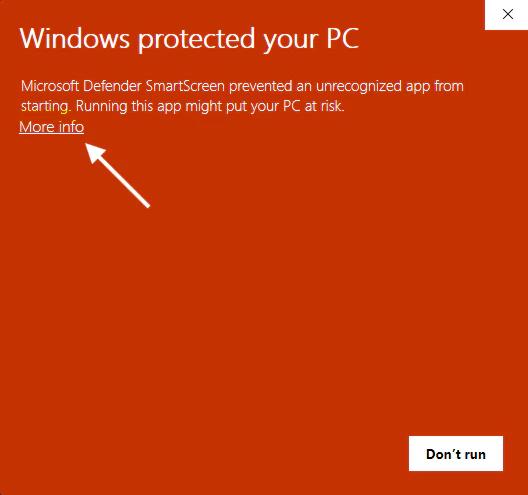
- The installer is not code-signed yet, so Windows Defender SmartScreen may show a warning. Click More info.
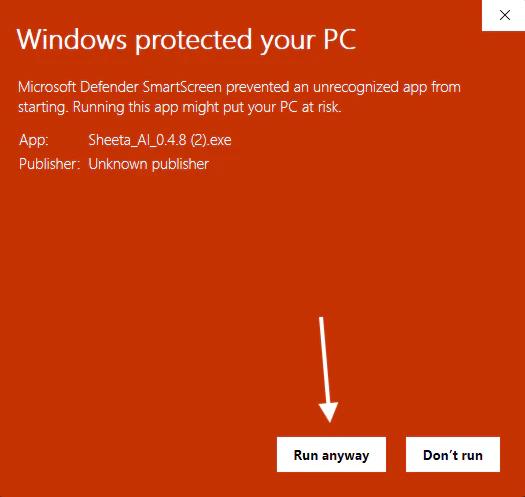
- Click Run anyway to start the installation.
Windows may also install Microsoft Edge WebView2 during setup if it is missing, because the app uses it to draw its window.
First launch
On first launch, Sheeta AI creates a project folder named Sheeta in your Documents folder and opens it. Later launches reopen the most recent project. Read Projects to learn how projects work, or follow the Quickstart.
You do not need a Sheeta account to connect to databases, run queries or use the AI agent. The agent uses Claude Code or Codex installed on your computer. See Agent Setup.
Updates
Sheeta AI checks for a new version each time it starts. When one is available, an Update Available button appears at the bottom of the left sidebar.
- Click Update Available, or open Settings and select Updates.
- Review the version, release date and release notes, then click Download Update.
- Click Install Update. The app restarts after the installation.
You can also click Check for Updates in Settings > Updates at any time. Updates never download on their own.
If you installed from the Microsoft Store, the Updates section shows Managed by Microsoft Store. Use the Update on Microsoft Store button to update there instead.
Release notes for each version are on the Release Notes page.