AI agent
Agent Setup
The Sheeta Agent runs on a coding agent CLI that is installed on your computer. Sheeta AI supports two of them: Claude Code and Codex. The agent uses your own Claude or ChatGPT subscription through that CLI. You do not need a Sheeta account or an API key.
Requirements
- Claude Code or Codex installed on the same computer.
- The CLI is logged in. Sheeta AI checks this with the CLI itself, so any login method the CLI accepts works.
- A project is open in Sheeta AI. Chat history is saved in the project folder.
Set up Claude Code
- Install Claude Code by following the Claude Code quickstart. On macOS you can install it from a terminal with the same command Sheeta AI suggests when Claude Code is missing:
curl -fsSL https://claude.ai/install.sh | bash - Run
claudein a terminal and log in with your Claude account. - In Sheeta AI, open the agent panel with Cmd+I (macOS) or Ctrl+I (Windows) and click Refresh.
Claude Code offers these models in Sheeta AI:
- Claude Opus 5: for complex agentic coding and enterprise work.
- Claude Sonnet 5: the best combination of speed and intelligence. This is the default model.
- Claude Haiku 4.5: the fastest model with near-frontier intelligence.
- Claude Fable 5: next-generation intelligence for long-running agents.
All four accept image attachments.
Set up Codex
- Install the Codex CLI by following the Codex CLI guide.
- Log in to Codex with your ChatGPT account.
- In Sheeta AI, open the agent panel and click Refresh.
Sheeta AI reads the list of Codex models from your Codex account, so the models you see depend on your plan. If Claude Code is not available, the default is gpt-5.6-terra when your account offers it.
Choose a model
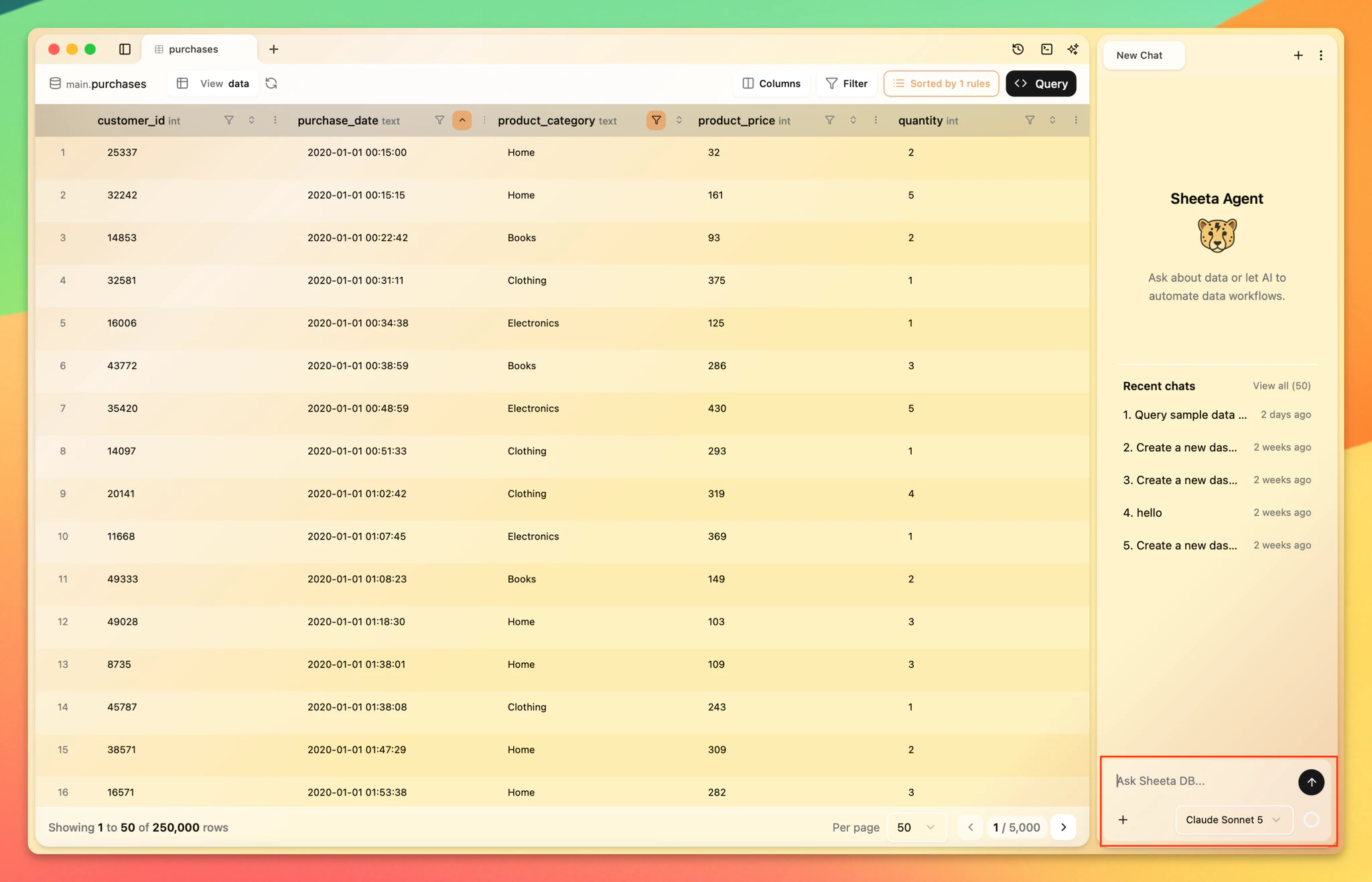
The model picker sits next to the send button in the agent panel. Models are grouped under Claude Code and Codex, and hovering a model shows its description. If both CLIs are installed, you can switch between them per chat tab. Sheeta AI remembers the last model you picked.
Usage gauge
The small circle next to the model picker shows how much of the context window the current chat uses. Hover or click it to see more detail:
- Context window: tokens used in this chat out of the model's limit.
- 5-hour limit and Weekly limit: how much of your Claude or ChatGPT subscription allowance you have used, and when each one resets.
The bars turn amber at 70% and red at 90%. These limits belong to your Claude or ChatGPT subscription. Sheeta AI reads them from the provider and does not set limits of its own.
If the agent is not ready
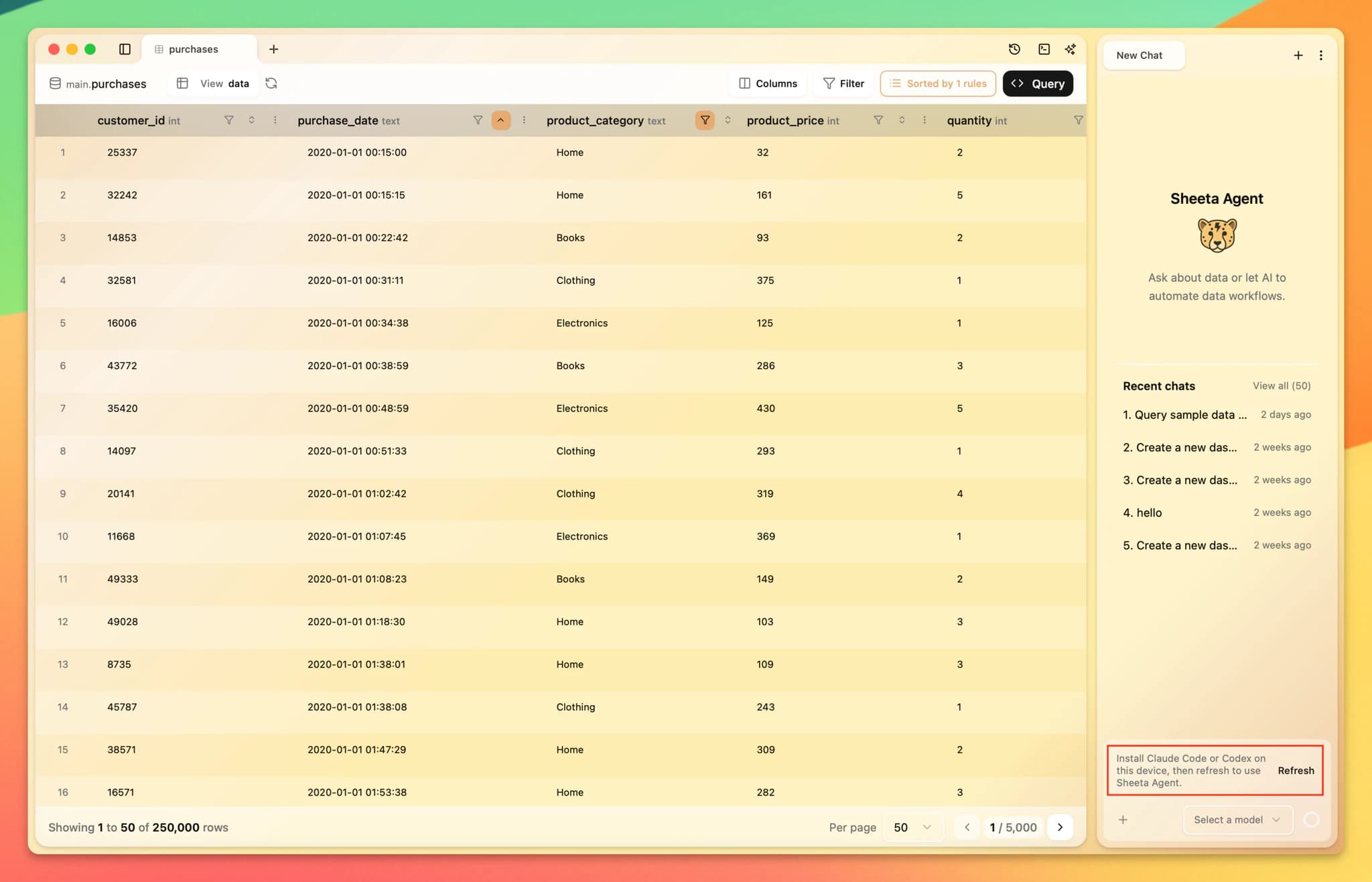
When Sheeta AI cannot use a CLI, the chat input is replaced by a message and a Refresh link:
- Install Claude Code or Codex on this device, then refresh to use Sheeta Agent.
- Log in to Claude Code or Codex on this device, then refresh to use Sheeta Agent.
- Sheeta could not load available models from this coding agent. Refresh to try again.
See Troubleshooting for what to do in each case.
Next steps
Learn what the agent can do in AI Agent. To use Sheeta's database tools from Claude Code, Cursor or Gemini CLI outside the app, see CLI and MCP.